SvcSystems.UI.Terminal
2.3.0
dotnet add package SvcSystems.UI.Terminal --version 2.3.0
NuGet\Install-Package SvcSystems.UI.Terminal -Version 2.3.0
<PackageReference Include="SvcSystems.UI.Terminal" Version="2.3.0" />
<PackageVersion Include="SvcSystems.UI.Terminal" Version="2.3.0" />
<PackageReference Include="SvcSystems.UI.Terminal" />
paket add SvcSystems.UI.Terminal --version 2.3.0
#r "nuget: SvcSystems.UI.Terminal, 2.3.0"
#:package SvcSystems.UI.Terminal@2.3.0
#addin nuget:?package=SvcSystems.UI.Terminal&version=2.3.0
#tool nuget:?package=SvcSystems.UI.Terminal&version=2.3.0
SvcSystems.UI.Terminal



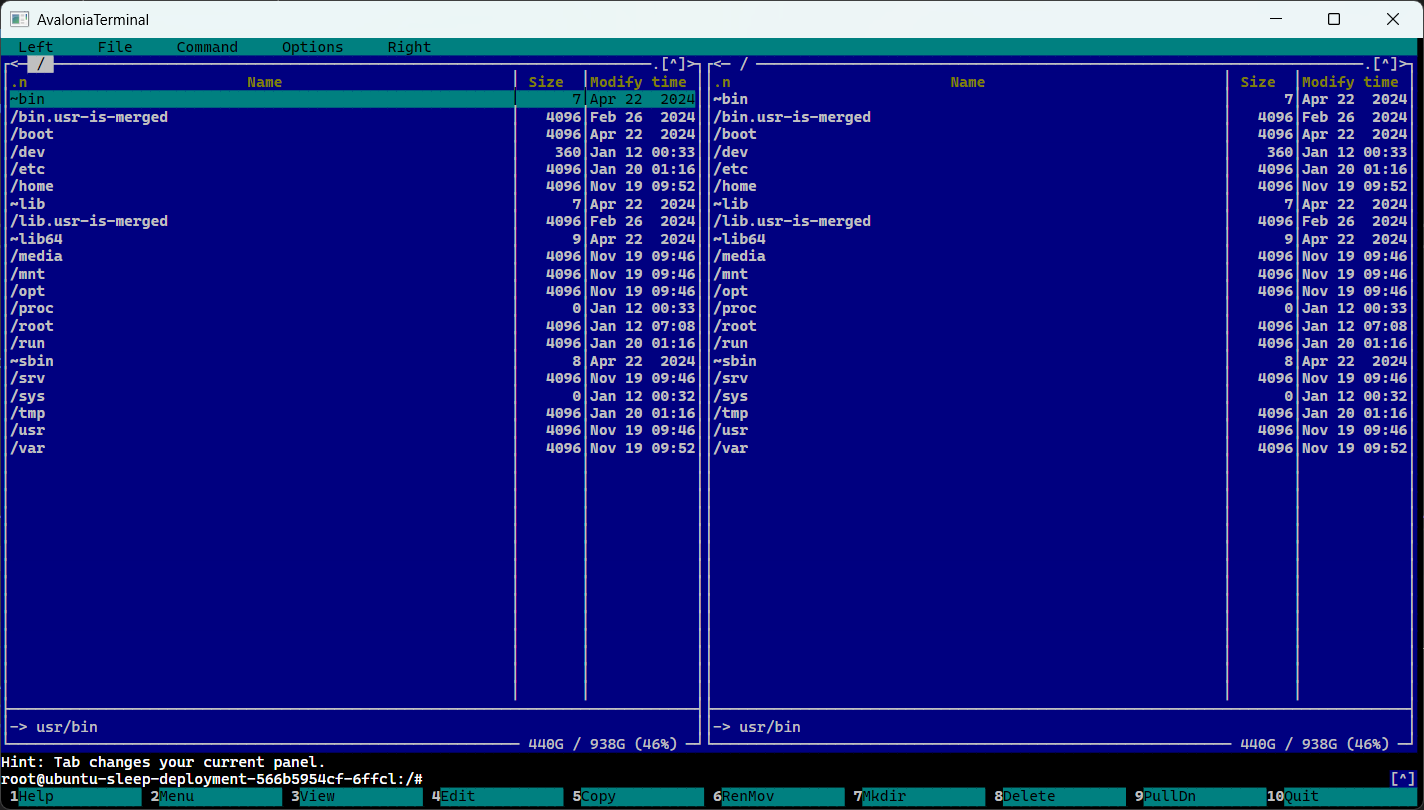
Terminal Control for Avalonia built on top of XTerm.NET.
Features
- Terminal rendering backed by
XTerm.NET - Standalone
Terminalwrapper for direct engine integration - Scrollback with mouse wheel, scrollbar,
PageUp, andPageDown - Caret rendering with theme-aware default styling
- Text selection with drag, double-click word selection, triple-click row selection, and drag auto-scroll
- Bindable selection state via
SelectedTextandHasSelection - Search helpers for finding and navigating matches in the terminal buffer
- Mouse reporting mode support for xterm-compatible terminal apps
- Kitty keyboard protocol key encoding for terminal apps that switch it on
- Host-friendly context menu and clipboard hooks
- Configurable right-click behavior via
RightClickAction - Model-driven API for feeding terminal output and sending user input
- Sample desktop app with
Shell,Scroll, andSelectiontabs - Windows sample shell prefers a WSL raw-PTY session, then ConPTY, then a redirected-shell fallback
- Sample shell disables resize reflow to avoid TUI resize corruption in apps such as
mc
Install
dotnet add package SvcSystems.UI.Terminal
Basic Usage
Add the control in XAML:
<Window
    xmlns="https://github.com/avaloniaui"
    xmlns:x="http://schemas.microsoft.com/winfx/2006/xaml"
    xmlns:terminal="using:SvcSystems.UI.Terminal">
    <terminal:TerminalControl Name="TerminalView" />
</Window>
Create and assign a TerminalControlModel in code-behind or a view model:
using Avalonia.Controls;

namespace MyApp;

public partial class MainWindow : Window
{
    private readonly TerminalControlModel _terminal = new();

    public MainWindow()
    {
        InitializeComponent();
        TerminalView.Model = _terminal;
    }
}
You can also pass SvcSystems.UI.Terminal.TerminalOptions when you need non-default terminal behavior:
var model = new TerminalControlModel(new TerminalOptions
{
    Cols = 120,
    Rows = 30,
    ReflowOnResize = false,
});
Feed terminal output:
_terminal.Feed("Hello from SvcSystems.UI.Terminal\r\n");
Receive user input:
_terminal.UserInput += (_, e) =>
{
    // Send bytes to a pty, process stdin, socket, ssh session, etc.
};
Common Integration Pattern
The usual flow is:
- Create a
TerminalControlModel - Bind or assign it to
TerminalControl.Model - Forward terminal output into
model.Feed(...) - Forward
model.UserInputto your process or remote shell
Example with a local process or remote session:
var model = new TerminalControlModel();

model.UserInput += (_, e) =>
{
    var bytes = e.Data;
    process.StandardInput.BaseStream.Write(bytes.Span);
    process.StandardInput.BaseStream.Flush();
};

_ = Task.Run(async () =>
{
    var buffer = new byte[4096];

    while (true)
    {
        var read = await process.StandardOutput.BaseStream.ReadAsync(buffer);
        if (read == 0)
        {
            break;
        }

        model.Feed(buffer, read);
    }
});
Core APIs
TerminalControlModel:
Feed(string)/Feed(byte[], int)for terminal outputSend(string)/Send(byte[])for programmatic inputScrollLines(int),PageUp(),PageDown(),ScrollToYDisp(int)ScrollToPosition(double),EnsureCaretIsVisible()StartSelection(int, int),StartSelectionFromSoftStart(),SetSoftSelectionStart(int, int)DragExtendSelection(int, int),ShiftExtendSelection(int, int)SelectWordOrExpression(int, int),SelectRow(int),SelectAll(),ClearSelection()Search(string),SelectNextSearchResult(),SelectPreviousSearchResult()SelectedText,HasSelectionTitleScrollOffset,MaxScrollback,ScrollPosition,ScrollThumbsize,CanScrollCaretColumn,CaretRow,IsCaretVisibleIsMouseModeActiveSizeChangedTerminal,SearchServiceOptionAsMetaKey
Terminal:
Feed(string)/Feed(byte[], int)for terminal outputResize(int, int)SwitchToAltBuffer(),SwitchToNormalBuffer()TitleChangedEngine,Buffer,Selection,IsAlternateBufferActiveCols,Rows,Title
TerminalControl:
ModelSelectedText,HasSelectionRightClickActionIsMouseModeActiveFontFamily,FontSize,CaretBrush,SelectionBrushSelectAll()CopySelection()CopySelectionAsync()Paste(string)PasteFromClipboardAsync()Search(string)SelectNextSearchResult()SelectPreviousSearchResult()ContextRequested
TerminalOptions used by TerminalControlModel:
ColsRowsScrollbackConvertEolTabStopWidthCellWidthPixelsCellHeightPixelsTermNameReflowOnResizeKittyKeyboardEnabled
Selection And Context Menus
Clients often want to enable a context menu item only when text is selected. TerminalControl exposes that directly:
if (TerminalView.HasSelection)
{
    var text = TerminalView.CopySelection();
}
You can also bind against SelectedText and HasSelection from the control or the model, or handle ContextRequested for a custom menu.
Selection behavior:
- drag selects text
- double-click selects a word or expression
- triple-click selects a full row
- dragging above or below the viewport auto-scrolls and keeps extending the selection
Right-click behavior is configurable:
ContextMenu: raiseContextRequestedCopyOrPaste: copy when selection exists, otherwise paste from the clipboardNone: ignore right-click
Example:
<terminal:TerminalControl RightClickAction="CopyOrPaste" />
Programmatic clipboard helpers:
await TerminalView.CopySelectionAsync();
await TerminalView.PasteFromClipboardAsync();
ContextRequested carries:
- pointer position relative to the control
- current
SelectedText - current
HasSelection
Search
Search is buffer-based
var count = TerminalView.Search("error");

if (count > 0)
{
    TerminalView.SelectNextSearchResult();
}
Useful model properties:
SearchResultCountCurrentSearchResultIndexLastSearchText
Mouse Reporting
When the terminal application enables mouse reporting, TerminalControl forwards pointer press, release, and motion events to XTerm.NET instead of using them for text selection. This allows interactive terminal applications to receive mouse input.
This is controlled by the terminal app, not by the Avalonia host. If an app does not switch the terminal into xterm mouse mode, the control will keep using the pointer for normal text selection.
Keyboard Protocol
XTerm.NET answers the kitty keyboard protocol query, and TerminalControl encodes keys with it once the terminal application sets its flags. That is what lets an application tell Shift+Enter from Enter, or Escape from the start of an escape sequence. Until an application sets flags, and again after it pops them, keys keep their legacy xterm encodings.
Under the protocol:
- key presses, repeats, and releases are reported as the application's flags ask
- a release is reported only for a key that went down under the protocol, and a key still down when the control loses focus is reported as released
- a key that only types text still arrives through text input, so composed and dead-key characters keep working
PageUpandPageDownkeep scrolling the viewport unless the application has taken the cursor keys- keys held with the Meta (Windows or Command) key are left to the host
Hosts that want applications to stay on the legacy encodings can switch the protocol off:
var model = new TerminalControlModel(new TerminalOptions
{
    KittyKeyboardEnabled = false,
});
Sixel Graphics
TerminalControl renders Sixel graphics decoded and placed by XTerm.NET 3. Sixel pixels scroll and erase with the buffer, remain transparent where the payload leaves pixels unset, and are drawn over terminal text but under selection and the caret. The control uploads each visible line strip once per content version and releases bitmap cache entries when strips leave the viewport.
Terminal protocol replies, including Device Attributes and XTGETTCAP capability answers, are raised through TerminalControlModel.UserInput along with keyboard and mouse input. Hosts should forward every UserInput payload to the connected process or pseudo-terminal; the sample does this automatically. This lets programs such as VT Doom detect Sixel support from the running terminal.
Cell pixel dimensions are taken from the control's measured font metrics and display scaling. The engine defaults to 10×20 device pixels before the control is attached to a visual tree.
Model-driven redraws are paced per control, so one terminal can be throttled without affecting another. RedrawInterval defaults to about 33 ms; set it to zero to submit redraws on each dispatcher update:
using SvcSystems.UI.Terminal;

var terminal = new TerminalControl
{
    RedrawInterval = TimeSpan.FromMilliseconds(16),
};
Performance Benchmarks
Run the terminal image CPU and allocation benchmarks with:
dotnet run -c Release --project benchmarks/SvcSystems.UI.Terminal.Benchmarks -- --filter "*Sixel*" "*Kitty*"
The benchmark output reports Sixel parse and viewport refresh cost, pixel-copy and bitmap-cache costs, Kitty frame rendering cost, managed allocations, and retained decoded and cached image pixel bytes. See benchmarks/README.md for measured results and the limits of the headless CPU measurements.
Styling
The library defines its default terminal styling in:
The desktop sample includes those resources automatically. If you host the control yourself, add the theme to your application's styles:
using SvcSystems.UI.Terminal;

Styles.Add(new TerminalTheme());
In XAML, declare the terminal namespace and add TerminalTheme to the application's styles:
<Application
    xmlns="https://github.com/avaloniaui"
    xmlns:x="http://schemas.microsoft.com/winfx/2006/xaml"
    xmlns:terminal="using:SvcSystems.UI.Terminal">
    <Application.Styles>
        <terminal:TerminalTheme />
    </Application.Styles>
</Application>
URI-based StyleInclude loading of Styles/Colors.axaml remains supported for compatibility, but is deprecated. New applications should use TerminalTheme as shown above.
TerminalTheme provides:
- the exported 256-color terminal palette as
SvcSystems.UI.TerminalColor0throughSvcSystems.UI.TerminalColor255
Available resource keys:
SvcSystems.UI.TerminalColor0...SvcSystems.UI.TerminalColor255
You can override those resources at the application level to align the terminal with your app theme:
<Application.Resources>
    <SolidColorBrush x:Key="SvcSystems.UI.TerminalColor0" Color="#111111" />
    <SolidColorBrush x:Key="SvcSystems.UI.TerminalColor15" Color="#F5F5F5" />
</Application.Resources>
TerminalControl also exposes direct styling hooks when you want to customize a single instance:
FontFamilyFontSizeCaretBrushSelectionBrush
Example:
<terminal:TerminalControl
    FontFamily="JetBrains Mono"
    FontSize="13"
    CaretBrush="Orange"
    SelectionBrush="#4060A0FF" />
Notes:
- font defaults are provided by the
TerminalControlproperty registrations and can be overridden by styles or direct values - caret and selection use the control properties first, then the corresponding application resources, then the built-in fallback behavior
- ANSI foreground/background rendering uses the exported
SvcSystems.UI.TerminalColor*resource keys, so hosts can replace the palette without changing library code
Samples
The repo includes a shared samples project and a desktop sample host.
Current sample tabs:
Shell: starts a platform-appropriate shell- Windows: prefers a WSL raw-PTY session (the default distribution) when
wsl.exehas a distribution, so the shell talks to the control through a guest-allocated PTY with no ConPTY in the path; then a ConPTY-backedpwsh.exe; then a redirected pipe fallback - macOS/Linux: uses the existing redirected-shell sample backend
- uses
RightClickAction="CopyOrPaste" - constructs the model with
ReflowOnResize = falseto keep full-screen TUIs stable during window resize
- Windows: prefers a WSL raw-PTY session (the default distribution) when
Scroll: preloaded scrollback sampleSelection: demonstrates selection and bindable selected text
Desktop sample host:
Shared sample controls:
src/SvcSystems.UI.Terminal.Samples/ShellControl.axamlsrc/SvcSystems.UI.Terminal.Samples/ScrollSampleControl.axamlsrc/SvcSystems.UI.Terminal.Samples/SelectionControl.axaml
Running The Sample App
dotnet run --project src/SvcSystems.UI.Terminal.Desktop
Sample shell notes
On Windows, the sample asynchronously verifies that the default WSL distribution has
bash,stty, and util-linuxscriptbefore preferring the WSL session. It startsbash -ibehind a PTY thatscript(1)allocates inside the guest and pipes raw VT to the control, so the control answers the shell's queries (XTGETTCAP, kitty, iTerm2, DECRQSS, …) and measures cell widths itself. Because the session's stdio are pipes, the guest PTY starts at0 0: the guest command sets the initial size withsttyand records its device path so later resizes are applied from outside withstty -F. The default distribution is used. The sample falls back to a ConPTY-backedpwsh.exe, then to a redirected pipe session, when WSL is unavailable.Terminal-initiated clipboard writes (OSC 52 / Kitty clipboard) are disabled by default because terminal output can come from an untrusted remote process. The sample explicitly enables writes for its local shell; applications hosting remote sessions should opt in only with an appropriate user-consent policy. Clipboard reads remain disabled by default as well.
ucs-detectreports the terminal host attached to its process. A run in Windows Terminal measures Windows Terminal (for example, itsms-terminalidentity and its console/VT behavior); it does not measure the Avalonia sample. SettingTERMdoes not change Python's Windows-specificblessedbackend.When WSL is not used, the sample hosts
pwsh.exein a ConPTY created with thePSEUDOCONSOLE_GLYPH_WIDTH_GRAPHEMESflag so ConPTY measures cell widths with grapheme clusters like the terminal engine does. The sample retries without the flag when an older Windows build rejects it, and it leaves East Asian ambiguous width at the console default to match the engine, which reportsambiguous_width = 1. The Avalonia control is the terminal for that ConPTY. ConPTY is an intermediary console emulator: it parses the shell's output into its own screen buffer and re-emits its own VT to the control, and it mediates terminal queries. A detector run from the ConPTY-backed shell therefore measures ConPTY plus the Avalonia control, not the control alone, so it reports fewer features and different Unicode widths. The engine is unchanged; the delta is entirely in the transport.To measure the Avalonia control, install the pinned
ucs-detectdependencies in the default WSL distribution and runucs-detectfrom the sample's WSL shell prompt. Its guest PTY talks to the control with no console emulator in between. For comparison, running the detector from a Windows Terminal tab measures Windows Terminal's own ConPTY:wsl.exe --distribution Ubuntu --exec sh -lc 'TERM=xterm COLORTERM=truecolor exec ucs-detect'The conformance suite likewise avoids ConPTY entirely: it uses a POSIX PTY and feeds VT probes directly into the headless Avalonia terminal, including on Windows. Its strict feature assertions validate the terminal model independently of either desktop host.
Full-screen TUIs such as
mcrender correctly with the current ambiguous-width fix and with resize reflow disabled in the sample shell.Mouse interaction in TUIs still depends on the application enabling xterm mouse reporting. Remote Linux apps often do this; some local Windows console apps may not.
Testing
The repo has headless tests covering terminal behavior without needing a visible desktop session.
The Sixel conformance tests cover transparent and colored pixels, placement after text, adjacent images,
cell and line erasure, clipping and resize behavior, strip caching, and drawing order with selection
and caret overlays. Redraw interval tests cover per-control configuration, input validation, and
coalescing multiple model updates for one terminal surface. The xUnit suite runs the pinned Python
ucs-detect package in a Unix PTY connected to a TerminalControl hosted in an Avalonia headless
window. The detector runs with --detect-all-dec-modes, and the suite has one named test per
ucs-detect detector function (from ucs_detect/terminal.py) plus one per Unicode measurement
category (from ucs_detect/measure.py), so a regression identifies the exact function that broke.
A completeness guard asserts the report's key set equals the pinned feature list, so a dependency
bump that adds a feature fails until it is covered. It retains
the JSON report and raw PTY transcript in the test output's
TestResults/ucs-detect folder. Windows runs the same Linux PTY helper through WSL Ubuntu so the
probes reach the terminal model directly. Each run retains the detector JSON, pinned dependency
versions, and raw PTY transcript.
Before the conformance tests run, the fixture checks the Python environment against
tests/requirements-ucs-detect.txt. It reuses an already-matching environment or creates a virtual
environment and installs the pinned requirements if needed. Set UCS_DETECT_PYTHON to use an
existing environment instead:
python3 -m venv .venv-ucs-detect
.venv-ucs-detect/bin/pip install -r tests/requirements-ucs-detect.txt
export UCS_DETECT_PYTHON="$PWD/.venv-ucs-detect/bin/python"
On Windows, the fixture creates and reuses a virtual environment in WSL Ubuntu automatically. To use
an existing WSL environment instead, set UCS_DETECT_WSL_PYTHON to its Python executable. To
provision it manually, replace the repo path with the path to this checkout:
wsl.exe --distribution Ubuntu --exec sh -lc 'python3 -m venv "$HOME/.venvs/svc-terminal-tests" && "$HOME/.venvs/svc-terminal-tests/bin/pip" install -r /mnt/c/repos/SvcSystems.UI.Terminal/tests/requirements-ucs-detect.txt'
$env:UCS_DETECT_WSL_PYTHON = (wsl.exe --distribution Ubuntu --exec sh -lc 'printf "%s" "$HOME/.venvs/svc-terminal-tests/bin/python"').Trim()
If WSL cannot create a virtual environment with pip, install the distribution's python3-venv
package. The PTY helper also includes Python's user script
directory on PATH for environments provisioned with user-installed CLI dependencies.
Both the .NET 10 and .NET 11 SDKs/runtimes are required to run both target frameworks. The control uses the published XTerm.NET 3.0.0 NuGet package for terminal emulation.
The supported dependency versions are pinned in tests/requirements-ucs-detect.txt. If installation
fails (for example, because Python lacks venv/pip support or the machine is offline), the fixture
reports the setup error and the test fails with the captured diagnostic.
To show the ConPTY delta is the transport rather than the engine, the opt-in
UcsDetectConPtyComparisonTests diagnostic runs the same WSL ucs-detect with the same flags
twice against the same headless control: once over a direct POSIX PTY and once through Windows
ConPTY (a path the sample still falls back to when WSL is unavailable). It writes a side-by-side diff next to the ConPTY report and
asserts the control loses capabilities only on the ConPTY path. Enable it with
UCS_DETECT_CONPTY_COMPARE=1 (Windows with the provisioned WSL environment only); it is skipped
otherwise so normal and CI runs are unaffected.
Each supported ucs-detect Unicode category is asserted at 100%, and detector functions are checked
by named test cases, including every DEC private mode reported by --detect-all-dec-modes. Tests
that require behavior missing from published XTerm.NET 3.0.0 are explicitly skipped: Unicode 18 wide
widths, the tested Tai Tham cluster, Khün language conformance, sized iTerm2 images, and SGR overline.
The iTerm2 feature/capability checks that disagree with the package's hard-coded response are also
skipped. Re-enable these tests when the upstream fixes are available in a published package. Running
the extra DEC-mode probe adds only a small amount of time to each run (roughly two to three minutes
total, well within the 30-minute test timeout). Font coverage results report the selected font's
actual glyph coverage; the suite validates the result without requiring universal font coverage.
The reference Iciclecreek.Avalonia.Terminal control also references XTerm.NET 3.0.0. Its checked-in compliance screenshot identifies XTerm.NET 2.0.0; that screenshot does not establish exhaustive conformance against the pinned detector and Unicode corpus used here.
dotnet test --project tests/SvcSystems.UI.Terminal.Tests/SvcSystems.UI.Terminal.Tests.csproj -f net10.0
dotnet test --project tests/SvcSystems.UI.Terminal.Tests/SvcSystems.UI.Terminal.Tests.csproj -f net11.0
CPU and managed allocation baselines for Sixel decoding, pixel copies, and bitmap-cache hits are
documented in benchmarks/README.md.
| Product | Versions Compatible and additional computed target framework versions. |
|---|---|
| .NET | net10.0 is compatible. net10.0-android was computed. net10.0-browser was computed. net10.0-ios was computed. net10.0-maccatalyst was computed. net10.0-macos was computed. net10.0-tvos was computed. net10.0-windows was computed. net11.0 is compatible. |
NuGet packages
This package is not used by any NuGet packages.
GitHub repositories (1)
Showing the top 1 popular GitHub repositories that depend on SvcSystems.UI.Terminal:
| Repository | Stars |
|---|---|
|
IvanJosipovic/KubeUI
Kubernetes User Interface
|
| Version | Downloads | Last Updated |
|---|---|---|
| 2.3.0 | 0 | 10/16/2026 |
| 2.2.4 | 40 | 10/14/2026 |
| 2.2.3 | 125 | 10/13/2026 |
| 2.2.2 | 163 | 10/12/2026 |
| 2.2.1 | 129 | 10/10/2026 |
| 2.2.0 | 217 | 10/8/2026 |
| 2.1.2 | 93 | 10/7/2026 |
| 2.1.1 | 96 | 10/6/2026 |
| 2.1.0 | 1,166 | 9/29/2026 |
| 2.0.0 | 737 | 9/24/2026 |
| 1.1.4 | 4,617 | 9/3/2026 |
| 1.1.3 | 312 | 8/29/2026 |
| 1.1.2 | 426 | 8/25/2026 |
| 1.1.1 | 849 | 8/22/2026 |
| 1.1.0 | 669 | 8/16/2026 |
| 1.0.3 | 864 | 7/30/2026 |
| 1.0.2 | 355 | 7/16/2026 |
| 1.0.1 | 2,435 | 5/14/2026 |
| 1.0.0 | 958 | 4/24/2026 |